Critical file backup process guide
A step-by-step guide for backing up important personal files to an encrypted USB drive.
- Overview
- Step 1: Configure backup computer
- Step 2: Configure USB drive
- Step 3: Unlock USB drive
- Step 4: Gather backup items
- Step 5: Back up files to USB drive
Platform note: This guide is written for Linux (specifically Fedora). Other operating systems can follow the general structure, but Steps 1 and 2, Pika Backups and LUKS-based disk encryption, are Linux-specific and will need platform-appropriate alternatives on macOS or Windows. I recommend VeraCrypt (opens in a new tab) for encrypting a USB drive for use with macOS and Windows.
A companion script that automates parts of this process is available at codeberg.org/splitsubdued/backup_process (opens in a new tab).
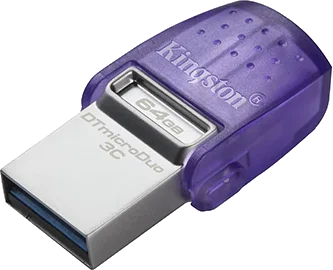
I use a USB drive that has both USB Type-C and Type-A connectors for maximum compatibility when recovering files.
Step 1: Configure backup computer
Password manager
Install the desktop version of your password manager — the web version doesn’t support all the actions needed here.
- Download and install the desktop app
- Log in to your account
Backup Software
Pika Backups will back up everything in your Home directory. Replace files as needed and Pika will handle version control.
- Install Pika Backups as a flatpak from Flathub via the Software app
- Configure the Home directory as the backup source
Step 2: Configure USB drive
For maximum compatibility, use a USB drive with both USB-C and USB-A connectors at 64 GB capacity.
Formatting the disk
Use Ext4 (MBR) with LUKS encryption via the Disks utility.
In Fedora Linux:
- Open Disks (gnome-disk-utility)
- Select the disk on the left
- Click Additional Format Options > Format Partition
- Erase: Don’t overwrite existing data (Quick)
- Partitioning: Compatible with all systems and devices (MBR / DOS)
- Click Format
- Click Next until complete
- Name the drive (e.g., “BACKUP1” or “BACKUP2”)
Formatting the partition
In Fedora Linux:
- Open Disks
- Select the disk on the left
- Click Additional Format Options > Format Partition
- Volume name: your chosen drive name
- Type: Internal disk for use with Linux systems only (Ext4)
- Check the box for Password protect volume (LUKS)
- Click Next
- Set a strong password and store it securely in your password manager
- Confirm that data will be wiped
Step 3: Unlock USB drive
- Open your password manager
- Search for and copy the drive password
- Connect the already-encrypted USB drive to the backup computer
- Paste the password when the OS prompts for it
Step 4: Gather backup items
Password manager
- Open the desktop app and log in
- Click the overflow icon (…) > Export
- Enter your password
- Leave the default export format
- Click Export Data
- Save the file in
~/Documents
Google Drive
- Go to Google Drive (opens in a new tab)
- Click on Starred
- Open and export Docs and Sheets files as OpenDocument types
Task Manager
- Open your task manager app
- Go to Settings > Account
- Next to Backup & Restore, click Generate Backup
- Choose where to save the file and click Save
Google Contacts
- Go to Google Contacts (opens in a new tab)
- Select all contacts by checking the box next to any contact, then click Selection Actions > All
- Click the overflow icon in the top right > Export
- Export as: Google CSV
- Click Export
- Move the CSV file from Downloads to Documents
uBlock Origin (Firefox)
- Open Firefox
- Open the uBlock Origin extension > Settings gear icon
- Click the Filter Lists tab
KOReader Settings
See the KOReader User Guide (opens in a new tab) for details on what gets backed up.
- Exit KOReader
- Connect Kobo to computer via USB cable
- Navigate to
.adds/koreader - Back up these files and directories:
settings.reader.luasettings/data/
Pleco Settings
- Open Pleco on iOS
- Tap the sidebar menu (three lines)
- Tap Settings
- Under Backup/Restore, tap Backup Settings and/or History > Backup Settings Only
- Tap Save when prompted to name the file
Related
- Automating the boring half of my backup process — the thinking behind the companion script that automates Step 4’s Google exports
Thanks for reading. If this was useful,
buying me a coffee
is the clearest signal I've got that it's worth writing more.
Questions or corrections are welcome at
jlmc.space@gmail.com