Use an iOS Shortcut to make an Obsidian daily note
Background
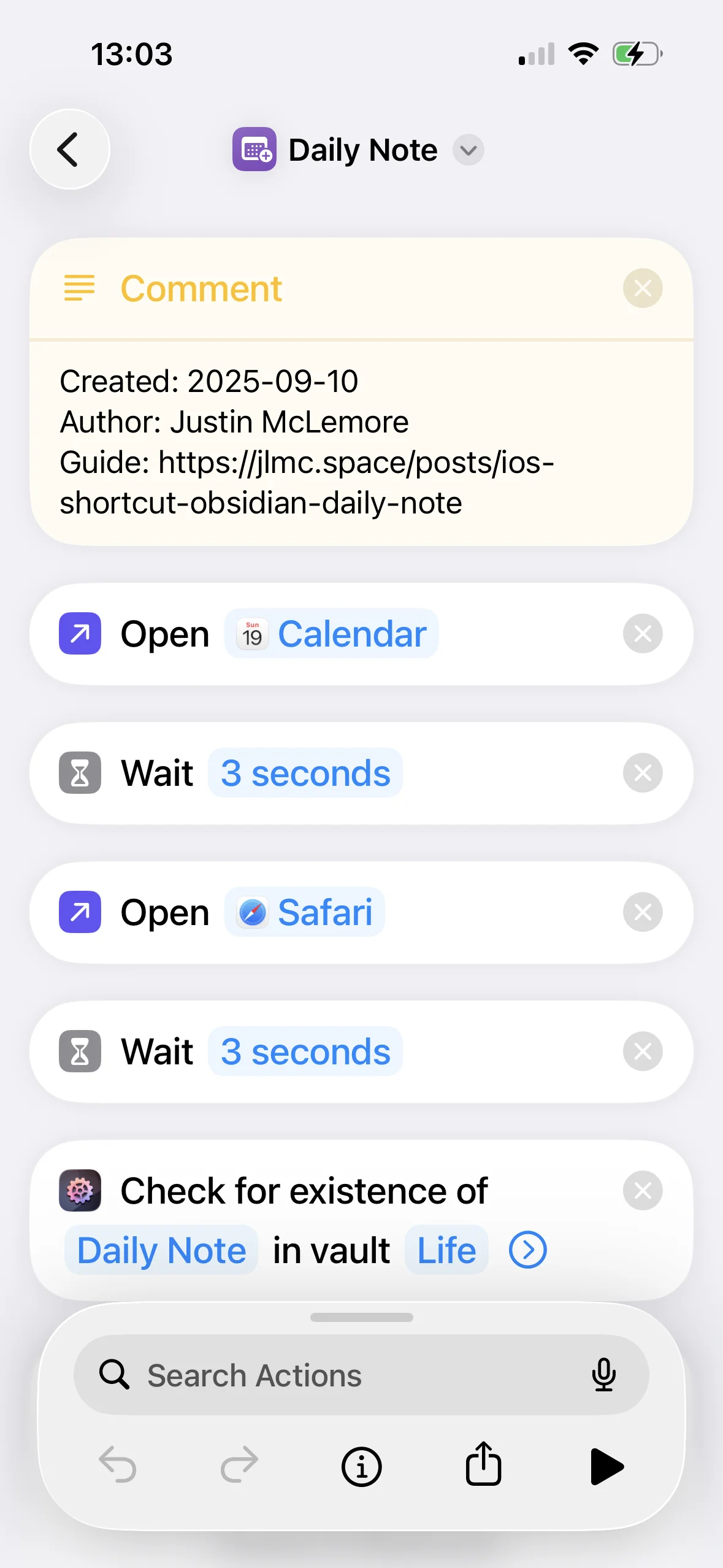
I make a daily note in Obsidian every day, but opening my laptop just to start a note felt like too much friction. So I made an iOS Shortcut that creates the note directly from my phone and populates it with useful context automatically:
- Creates the day’s note using my daily notes template
- Adds a heading for each event on my calendar
- Adds a bullet point for each open tab in Safari
Note: I’ve since switched to the Journals (opens in a new tab) community plugin for generating daily notes, but this shortcut still works well and many people prefer keeping it in iOS Shortcuts.
Prerequisites
What you need:
- Obsidian (opens in a new tab) set up on your computer and synced to your phone via Obsidian Sync (opens in a new tab) (paid subscription)
- Shortcuts (opens in a new tab) installed on your phone (it’s built in but removable)
Apps to install on iPhone:
- Obsidian (opens in a new tab): sign into your Obsidian Sync account and sync your vault
- Actions for Obsidian (opens in a new tab): link your vault and grant permissions. I set the End of Workflow action to “Open Obsidian”, but that’s optional
- Actions (opens in a new tab)
If you use a daily notes template, you’ll also want to modify the shortcut to match your formatting. My template is at the bottom of this page.
Instructions (iOS and iPadOS only)
- Add the shortcut to your phone: Daily Note (opens in a new tab)
- Open the Shortcuts app > Library tab
- Tap
...on Daily Note to open the editor - In the first text block, change “Life” to the name of your vault
- Tap the play button to test it
Morning automation
I run this shortcut automatically each morning, but with a confirmation tap so it doesn’t fire while I’m still asleep.
- Go to iOS Settings > Focus > Sleep and create a Sleep focus if you don’t have one
- Open Shortcuts > Automation tab
- Tap + > Sleep
- Set When to “Waking up” and choose “Run After Confirmation”
- Tap Next and select your Daily Note shortcut
Daily notes template
The template below uses two community plugins:
- Templater (opens in a new tab) provides the |
<< yesterday \| tomorrow >>date navigation - Dataview (opens in a new tab) provides the notes created/modified today sections
If you don’t want date navigation, skip Templater and delete line 6. If you don’t use a note index, delete lines 3–4 (parent property).
---
created: "2026-07-08"
parent:
  - "[[Daily note index]]"
---
<< [[<% tp.date.now("YYYY-MM-DD", -1) %>]] | [[<% tp.date.now("YYYY-MM-DD", 1) %>]] >>

%%appointments%%

---
## Noteworthy content consumed
-

---
## Open mobile browser tabs
%%safaritabs%%

---
## Today I Learned
-

---
## Journal


---
## Notes created today
```dataview
list file.ctime
where file.ctime > this.file.day and file.ctime < (this.file.day + dur(1 day))
```
## Notes modified today
```dataview
list file.mtime
where file.mtime > this.file.day and file.mtime < (this.file.day + dur(1 day))
```
Troubleshooting
Actions for Obsidian can’t find my vault Open the Actions for Obsidian app directly and re-run the vault linking setup. This usually happens after reinstalling Obsidian or re-syncing.
The shortcut errors on the calendar step Check that Shortcuts has permission to access your calendar: iOS Settings > Privacy & Security > Calendars > Shortcuts.
The note is created but Obsidian doesn’t open In Actions for Obsidian, confirm that the End of Workflow action is set to “Open Obsidian”.
The note already exists and gets overwritten The shortcut checks for an existing note, but if you run it twice in a day the second run will overwrite the first. Run it once per day, or modify the shortcut to append instead of create.
Thanks for reading. If this was useful,
buying me a coffee
is the clearest signal I've got that it's worth writing more.
Questions or corrections are welcome at
jlmc.space@gmail.com