Switch from physical books to an eReader
Instructions for iPhone users
- Add this iOS Shortcut to your phone: Search Anna’s Archive (opens in a new tab).
- Open the Shortcuts app and tap Search Anna’s Archive.
- Point your camera at the barcode on the back of the book. The shortcut will open Anna’s Archive to the results for that book.
- Find the format that you want and download the book.
- The EPUB format converts to KEPUB later on, so I choose that every time. If a book is picture heavy or has charts and formulas, I’ll opt for a PDF version, if it’s available.
- Anna’s Archive limits the download speed of free users, so I donated some money to increase my limit for this project.
- Repeat steps 3 and 4 until you’ve scanned all of your books that you want to convert.
- Get the books off of your phone the easiest way you can from the iOS Files app. Here are a few methods.
- A) Connect a USB Type-C drive to the phone’s USB Type-C port. If you have an adapter, you could use a USB Type-A drive. If the phone is a model earlier than an iPhone 15, it will have a lightning port and this won’t work.
- B) AirDrop the files to a Mac.
- C) Move them to your iCloud drive in the iOS Files app and download them on a computer from iCloud.com (opens in a new tab).
- D) Move them to your Google Drive in the iOS Files app and download them on a computer from Google Drive (opens in a new tab).
- Install Calibre (opens in a new tab).
- Open Calibre and add the ebooks using the Add Books button in the menu bar.
- Connect your eReader to the computer.
- Click Send to Device in Calibre.
Instructions for Android and other devices
- Follow the steps for iPhone users, but go to Anna’s Archive (opens in a new tab) and then skip to step 4. iOS comes with a free app for automating things and I haven’t found a free alternative on Android yet.
Background
I’m planning to move from place to place over the next few months and I can no longer justify toting around more than 100 physical books. Some of these have moved with me from two previous countries and they’ve lived in a storage unit for the past year. It’s time to let them go and make the switch to strictly using an eReader.
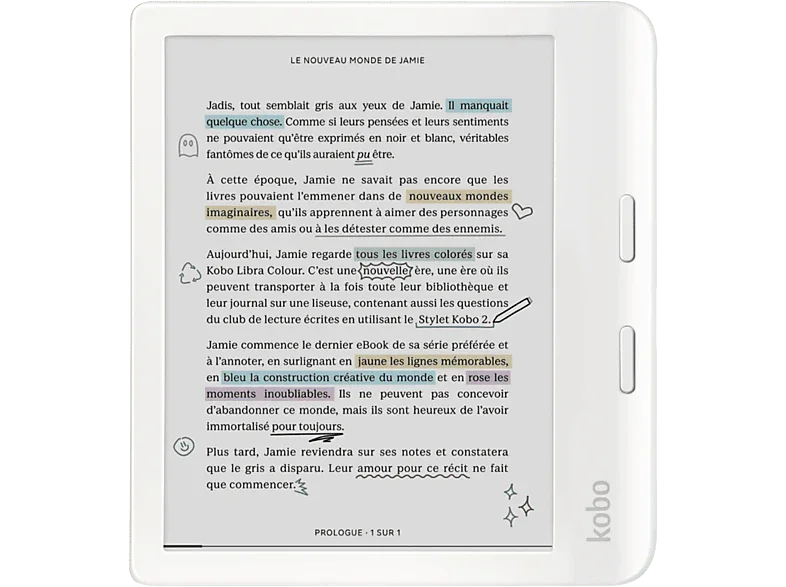
I used to use an Amazon Kindle Paperwhite, but since their decision to remove our ability to download purchased books to a computer and then copy them manually to a Kindle over USB (opens in a new tab), I’ve had it with user-hostile companies. I’ve made the switch to a Rakuten Kobo Libra Colour (opens in a new tab).
I use the cross-platform free and open-source program Calibre (opens in a new tab) to manage these ebooks and send them to my Kobo. If you’re curious, it’s pronounced cal-i-ber. I’ve been pronouncing it cal-i-brey for over ten years.
Context for nerds
Made an iOS Shortcut (Search Anna’s Archive (opens in a new tab)) to use the Scan Barcode function. It scans the barcode on the back of the book which contains the International Standard Book Number (ISBN). The shortcut passes the ISBN to a variable and then uses the variable in the URL of Anna’s Archive. It opens the default web browser to the URL of the results page. I set this shortcut to trigger when I use the Action button on my iPhone 15 Pro. Otherwise you need to go back to the iOS Shortcuts app and trigger it, or send it to the Home Screen for easier access.
Thanks for reading. If this was useful,
buying me a coffee
is the clearest signal I've got that it's worth writing more.
Questions or corrections are welcome at
jlmc.space@gmail.com